

Last Updated: October 2026
Your aim feels fine in the Firing Range. Then a Horizon slides across a doorway, you drag past her twice, and suddenly every setting looks guilty.
This Apex Legends sensitivity guide gives you a better answer than copying one pro's number. You'll set a mouse or controller baseline, test close and mid-range tracking, diagnose overshoots and undershoots, tune ADS without wrecking hipfire, and lock the result long enough to build real muscle memory.
This article is current for Season 30: Marked, Split 2. The official Marked midseason patch notes confirm the live season and September 15 split start.
⚡ Quick answer: Mouse players can start around 800 DPI, 1.5 in-game sensitivity, and 1.0 ADS—1,200 eDPI—then adjust by 5–10% after repeated misses. Controller players should start with a normal preset, use the smallest deadzone that does not drift, and open Advanced Look Controls only when they can name the exact problem.
Table of Contents
- What Apex sensitivity actually changes
- Mouse DPI and eDPI
- The five-step sensitivity test
- ADS and per-optic settings
- Controller sensitivity
- How to review real fights
- FAQ
What Apex Legends Sensitivity Actually Changes
Sensitivity decides how much your view moves for a given mouse or stick input. It does not fix late reactions, bad crosshair placement, recoil you have not learned, frame drops, or a panic grip that changes every fight.
That distinction saves time. If your crosshair starts a full doorway away from the enemy, the first problem is pre-aim. If it starts on target and repeatedly sails past a strafe, sensitivity deserves the blame.
Record the full setup before touching it:
- Input and device
- Mouse DPI and in-game sensitivity, or controller look/ADS preset
- ADS multiplier and any per-optic values
- Response curve and deadzone
- Field of view
- Mousepad space, grip, and polling rate if relevant
I believe most sensitivity spirals start because players change three things, hit one good beam, then cannot explain why the next session feels wrong. One variable gives you an answer. Five variables give you a superstition.
Apex eDPI, Mouse DPI, and a Clean Starting Point
For mouse and keyboard, eDPI is the simplest way to compare effective speed:
Mouse DPI × Apex in-game sensitivity = eDPI
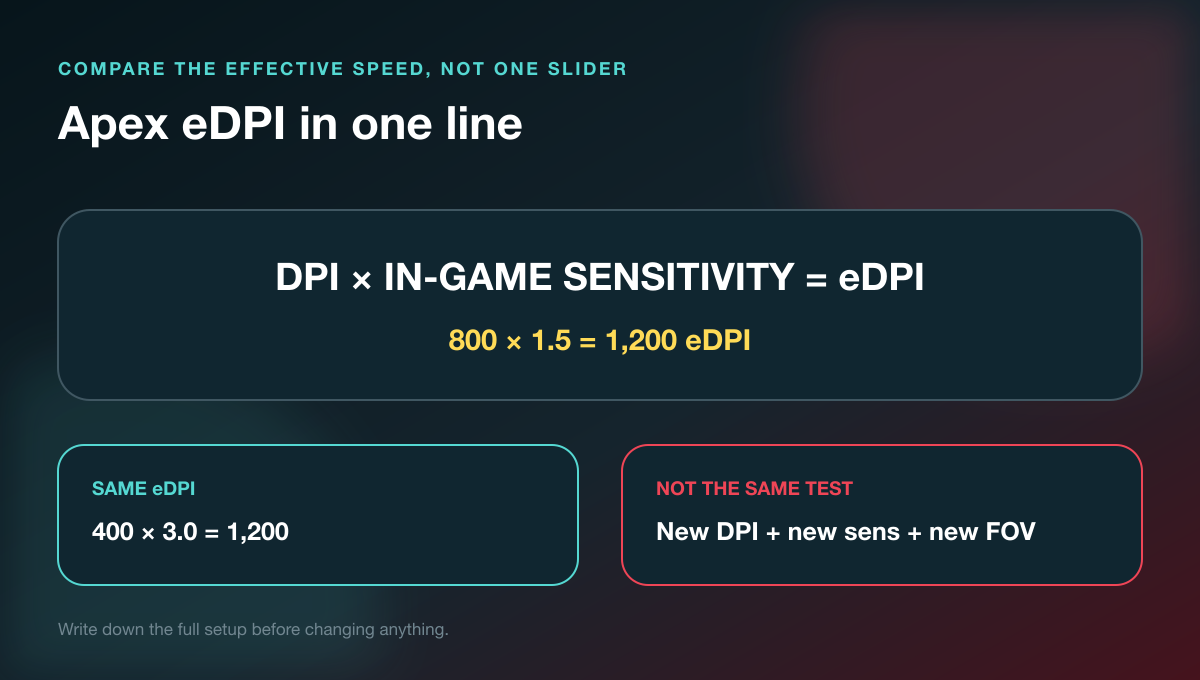
At 800 DPI and 1.5 sensitivity, you have 1,200 eDPI. At 400 DPI and 3.0 sensitivity, you also have 1,200 eDPI. The displayed numbers differ; the effective turn speed is comparable.
An updated Apex mouse-settings roundup uses 800 DPI, 1.5 sensitivity, and 1.0 ADS as a practical middle starting point. Treat that as a test value—not a verdict from the aim gods.
Current player databases show why copying one name is weak evidence. The Apex ProSettings list contains a wide range of DPI, sensitivity, ADS, FOV, hardware, and roles. A number built around another player's desk space and years of reps may feel awful on yours.
Start with space, not status
Put the mouse in the middle of your usable pad. You need enough room to track a close target, turn to a second angle, and recenter without lifting at the worst possible moment.
If one comfortable sweep cannot cover the turns your fights demand, the setting is probably too slow for your available space. If tiny hand tension sends the crosshair past heads at mid-range, it is probably too fast.
Neither label is an insult. The right setting is the one you can repeat when the fight gets ugly.
Use a Five-Step Apex Sensitivity Test
Do not judge a setting from one magazine. Apex aim mixes sustained tracking, recoil control, wide turns, vertical movement, different optics, and targets that shoot back.
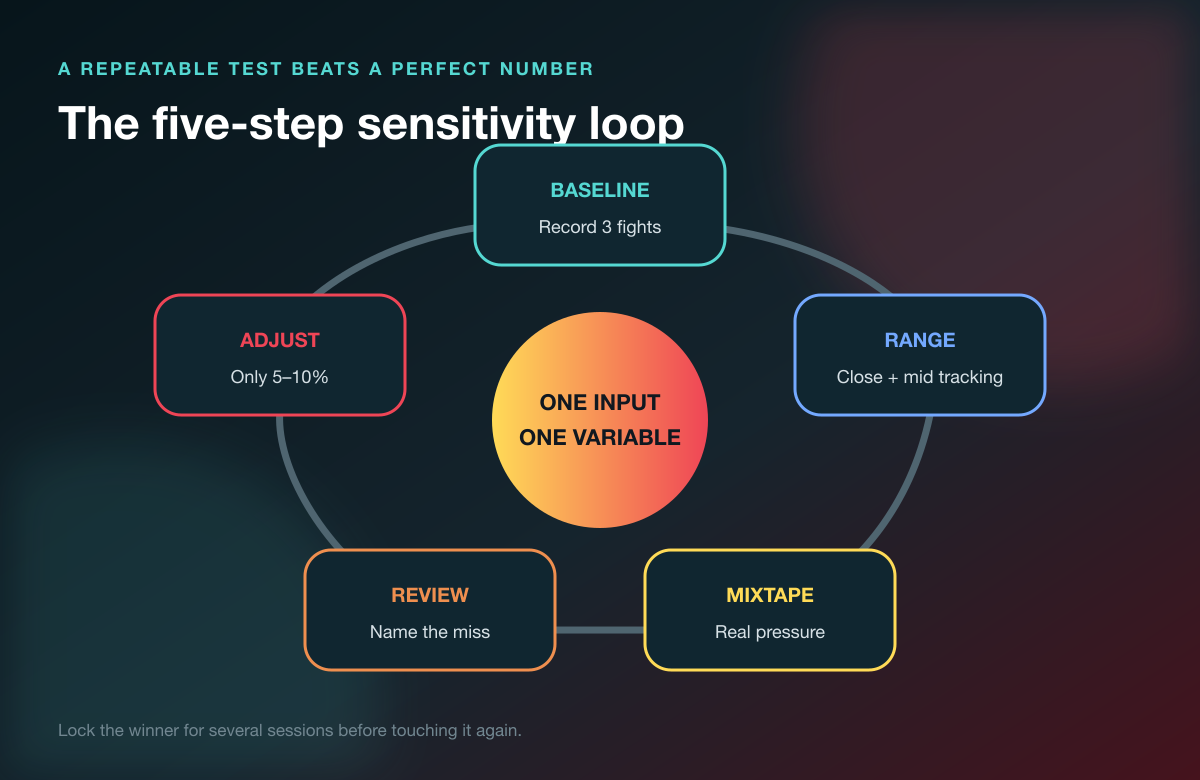
1. Save a baseline
Write down the current setting and record three ordinary fights. Keep one clean clip, one messy loss, and one fight where the target changes direction.
The baseline matters because memory lies. After six slider changes, yesterday's “unplayable” setting somehow becomes the one you wish you could restore.
2. Test close-range tracking
In the Firing Range, strafe while tracking a moving target at SMG distance. Include left-to-right changes and one wide turn into a second target.
Watch the relationship between crosshair and target—not only damage. Damage changes with weapon, magazine, recoil, and timing. The miss pattern tells you whether the view keeps running ahead or falling behind.
3. Test mid-range control
Move far enough away that small corrections matter. Use the same optic and weapon for each comparison, fire controlled bursts, then test a sustained track.
If close tracking feels perfect but mid-range aim looks shaky, do not instantly kill the base sensitivity. That can be an ADS or optic problem.
4. Take it into Mixtape or live fights
Range targets do not climb, shoot back, force cover swaps, or punish your grip. Run the setting in a mode with repeated engagements before declaring victory.
Judge three things: first acquisition, sustained track, and the correction after the enemy changes direction. A great first flick followed by two wild corrections is not a stable setting.
5. Adjust by 5–10%, then repeat
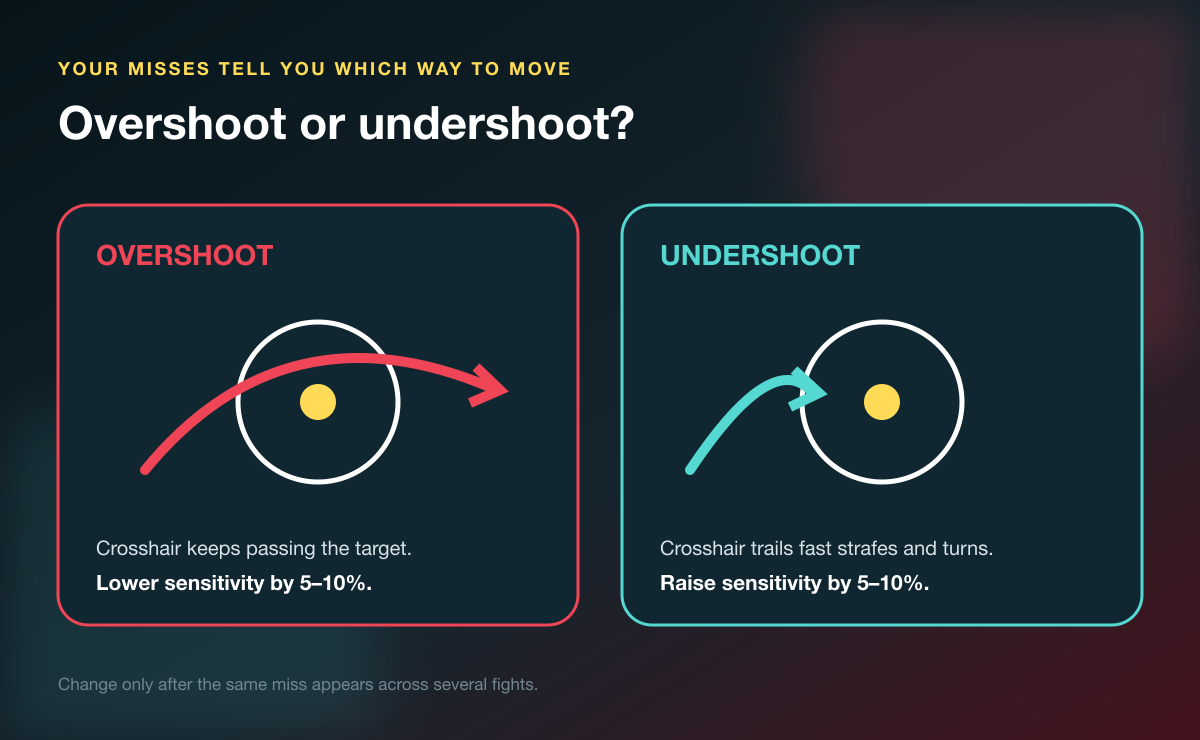
- Repeated overshoot: lower sensitivity by 5–10%.
- Repeated undershoot: raise sensitivity by 5–10%.
- Inconsistent misses both ways: keep the setting and check technique, frame pacing, fatigue, or starting crosshair placement.
- Only one optic fails: leave the base alone and test that optic separately.
Lock the winner for several sessions. A setting cannot become familiar if you edit it every time someone superglides across your screen.
Tune Apex ADS Sensitivity After Hipfire
Your base sensitivity has to handle turning, looting, close hipfire, movement, and target acquisition. ADS sensitivity then scales the aiming feel while scoped.
Start at 1.0 ADS. Test the same close and mid-range drill. Change it only if the ADS miss pattern repeats while hipfire remains controlled.
Use per-optic ADS as a repair tool
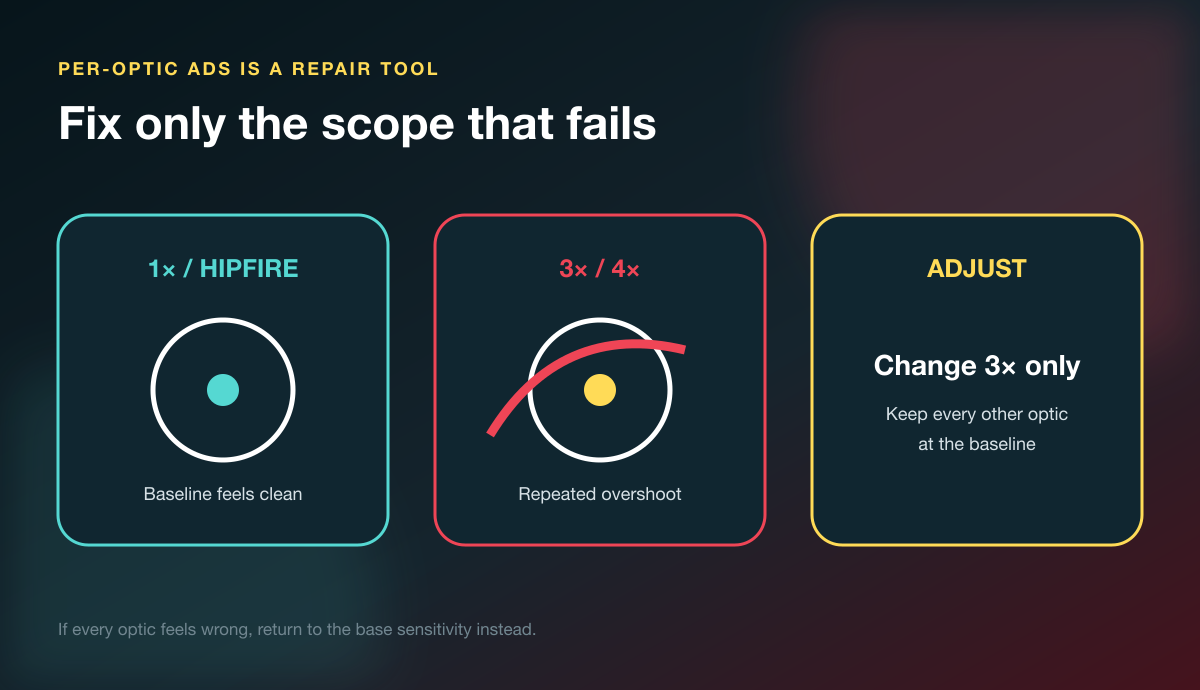
Per-optic settings are useful when one magnification consistently feels wrong. They are terrible when used as seven fresh sliders to obsess over.
Run this order:
- Confirm the base hipfire sensitivity.
- Confirm global ADS at 1× and a familiar weapon.
- Test one higher magnification with the same target and distance.
- Change only that optic by a small amount.
- Return to live fights before touching another optic.
If every scope feels too fast, change global ADS. If the 3× repeatedly overshoots while 1× and 2× feel clean, reduce only the 3× value.
Field of view can change how fast movement looks on screen even when the physical turn remains the same. Set your FOV first, record it with the baseline, and stop moving both sliders together.
Apex Controller Sensitivity, Response Curve, and Deadzone
Controller tuning has more interacting layers: look sensitivity, ADS sensitivity, response curve, deadzone, and optional Advanced Look Controls (ALC).
EA defines ALC as settings that provide greater control over aiming and movement, and its current Apex terms guide shows where to enable them. More control is useful only when you already know what needs changing.
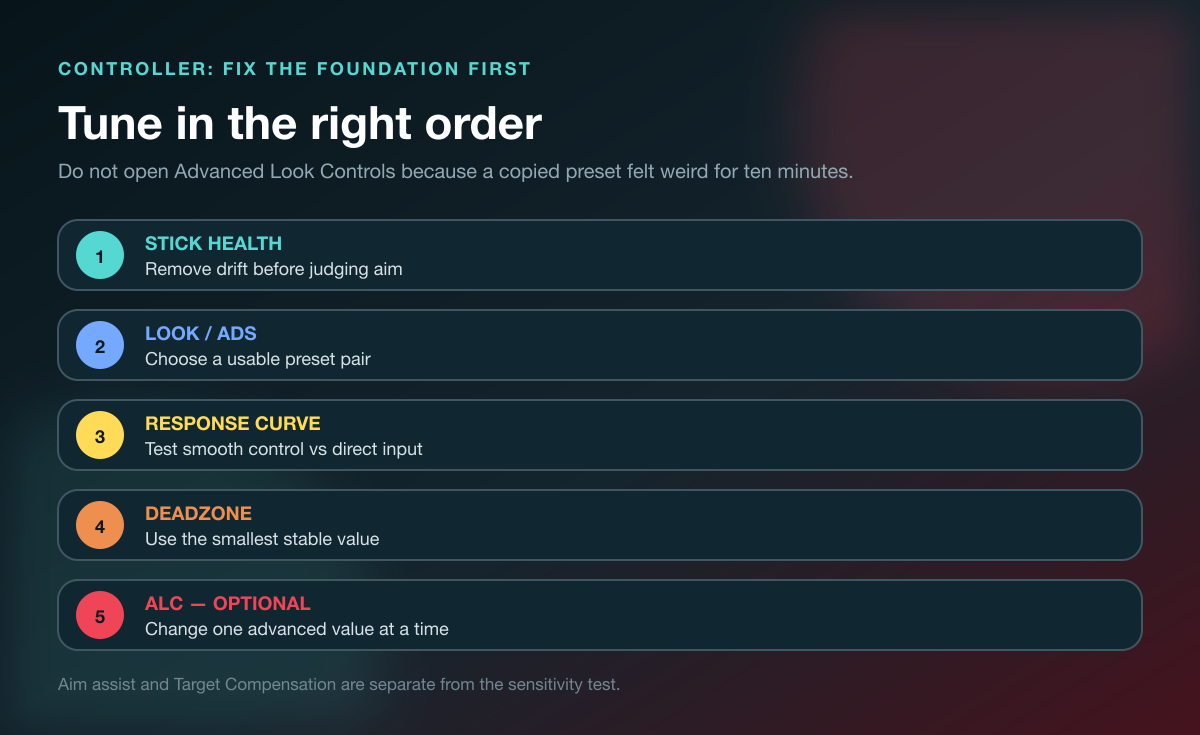
Choose a preset before opening ALC
A simple preset gives you fewer variables and faster feedback. Pick a look speed that can turn through close fights without losing mid-range control, then choose an ADS speed you can track with.
You will see players recommend “4-3 Linear” everywhere. Test it if you want, but do not treat the phrase as a universal answer. Stick tension, drift, thumb control, platform, frame rate, and years on a response curve all change the result.
Response curve changes how input builds
A more direct curve makes small stick movements feel immediate. A softer curve adds more control near center before the turn accelerates.
Test response curve with micro-corrections and direction changes, not a single 180. If direct input exposes constant jitter, you may need more practice, a different curve, or a small deadzone—not a completely new sensitivity stack.
Use the smallest stable deadzone
Set the controller down in the Range. If the view moves without input, raise deadzone until the drift stops. Then play and check whether small corrections still register cleanly.
A deadzone that is too large can make the first part of stick movement feel unresponsive. A deadzone that is too small can turn hardware drift into false input. “None” is not automatically better.
Keep aim assist separate from the test
EA says aim assist is on automatically for console players and PC controller users, and that it remains active in the Firing Range when enabled. Its aim-assist guide places Target Compensation inside ALC.
Do not toggle aim assist, response curve, deadzone, and sensitivity in the same comparison. You will not know which change created the result.
⚠️ Keep it legit: Season 30's official notes say EA detects unauthorized controller hardware or software across PC, PlayStation, Xbox, and Nintendo Switch 2. Do not use macros, anti-recoil devices, or input manipulation as a “settings” shortcut.
Review Aim With a Teammate, Not Just a Target Dummy
Your crosshair can miss because the number is wrong. It can also miss because your teammate swung before you were ready, the target crossed two elevations, or you were trying to track while standing in a terrible lane.
Review clips with one question at a time:
- Did the crosshair start near the threat?
- Did the first correction pass the target or stop short?
- Did recoil control fail after the first few shots?
- Did the target change direction before your hand reacted?
- Did the squad's call give you time to pre-aim?
If you want a structured replay process, our Apex Legends coaching guide shows how to turn one repeated leak into a cue, drill, and three-game measure. If the real issue is finding people who call targets and review without flaming, use the Apex Legends LFG guide to run a three-game squad trial.
The fastest feedback often comes from another set of eyes. Find a skilled Apex teammate on Tapin and ask them to watch the first correction in three fights—not to dump 40 settings on you.
I believe that is the difference between settings work and settings theater: one repeated miss, one small adjustment, then enough games to prove it.
Apex Legends Sensitivity FAQ
What is a good Apex Legends sensitivity for mouse?
800 DPI with 1.5 in-game sensitivity and 1.0 ADS is a reasonable middle baseline, equal to 1,200 eDPI. Test it in the Firing Range and real fights, then change by 5–10% only after a repeated overshoot or undershoot pattern.
How do I calculate Apex eDPI?
Multiply mouse DPI by in-game sensitivity. For example, 800 DPI × 1.5 sensitivity equals 1,200 eDPI.
Is 4-3 Linear the best Apex controller sensitivity?
No setting is best for every controller and player. 4-3 Linear is a useful baseline to test, but stick drift, thumb control, platform, frame rate, and comfort can make another preset or response curve more consistent.
Should I use Apex Advanced Look Controls?
Use ALC when you can name a specific limitation that normal presets cannot solve. Keep presets if they already let you turn, track, and make small corrections consistently; fewer variables make practice easier to judge.
How often should I change my Apex sensitivity?
Only after the same problem appears across several controlled tests and real fights. Once a setting works, lock it for multiple sessions so your hand can adapt.
Does FOV change Apex sensitivity?
FOV changes how fast movement appears and how large targets look on screen, so sensitivity can feel different. Set FOV before testing sensitivity and avoid changing both during the same comparison.
Lock the Number and Build the Skill
Good Apex sensitivity keeps up with close fights without turning every mid-range correction into a coin flip. Save the baseline, read the miss, change one value, and test it under pressure.
Then stop touching the slider. The goal is not a magical number—it is aim you can repeat with the squad beside you.