

Last Updated: October 2026
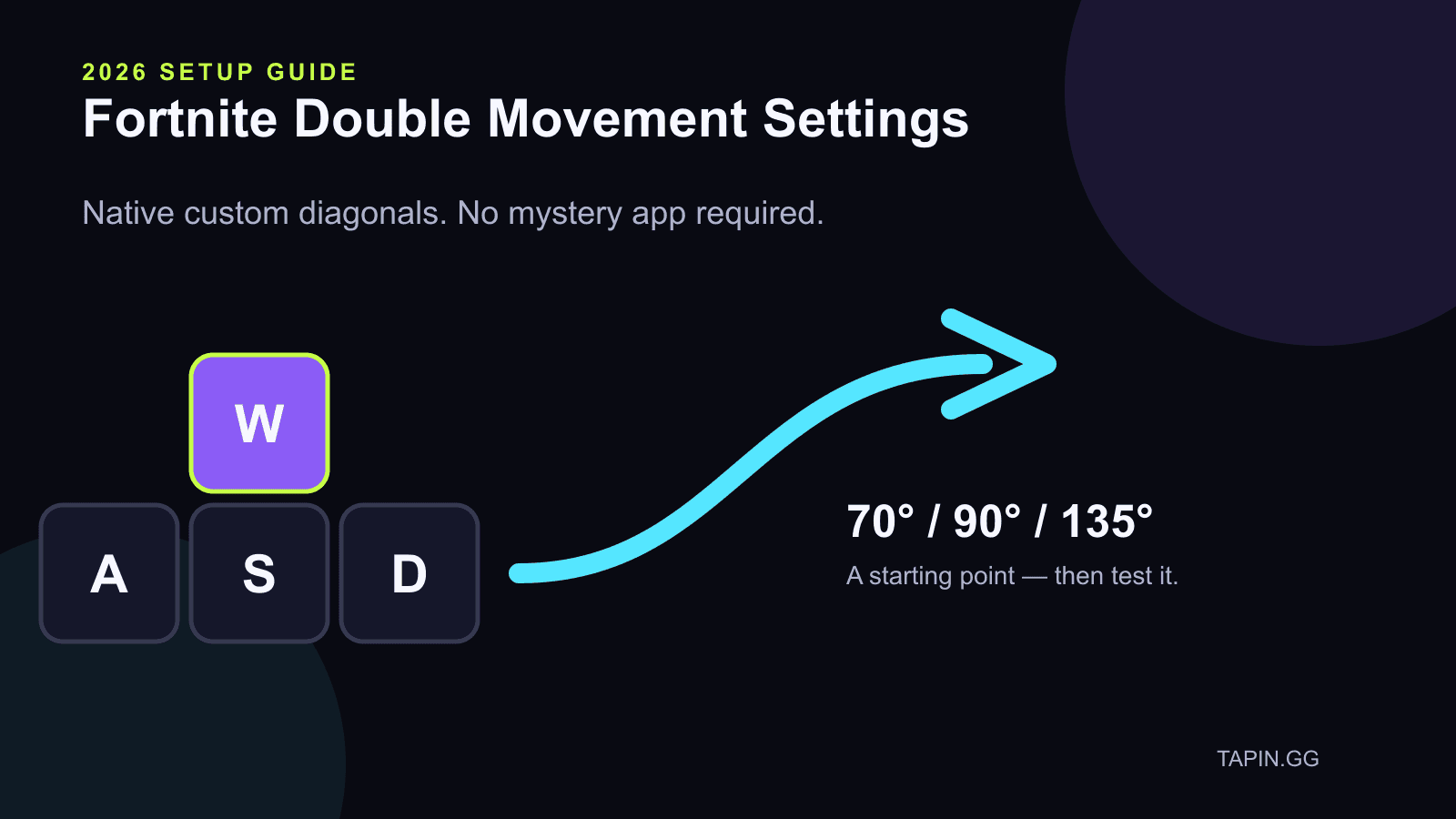
Fortnite double movement settings should make your keyboard movement easier to control—not force you to relearn every fight. The clean setup is already inside Fortnite: enable Use Custom Diagonals, start at 70° forward, 90° strafe, and 135° backward, then test it against your normal movement before touching anything else.
This guide was rechecked during Fortnite v42.30{:target="_blank"} and the official Fortnitemares 2026 event{:target="_blank"}, inside Chapter 7 Season 4: Override{:target="_blank"}. Custom diagonals are a movement setting, so the process survives weapon and map changes—but Epic has reset these values after movement updates before.
⚡ Quick answer: Open Settings → Mouse and Keyboard → Keyboard Movement, turn Use Custom Diagonals on, and try 70 / 90 / 135. Keep that setup only if it beats default WASD in the same strafe, build, and peek tests.
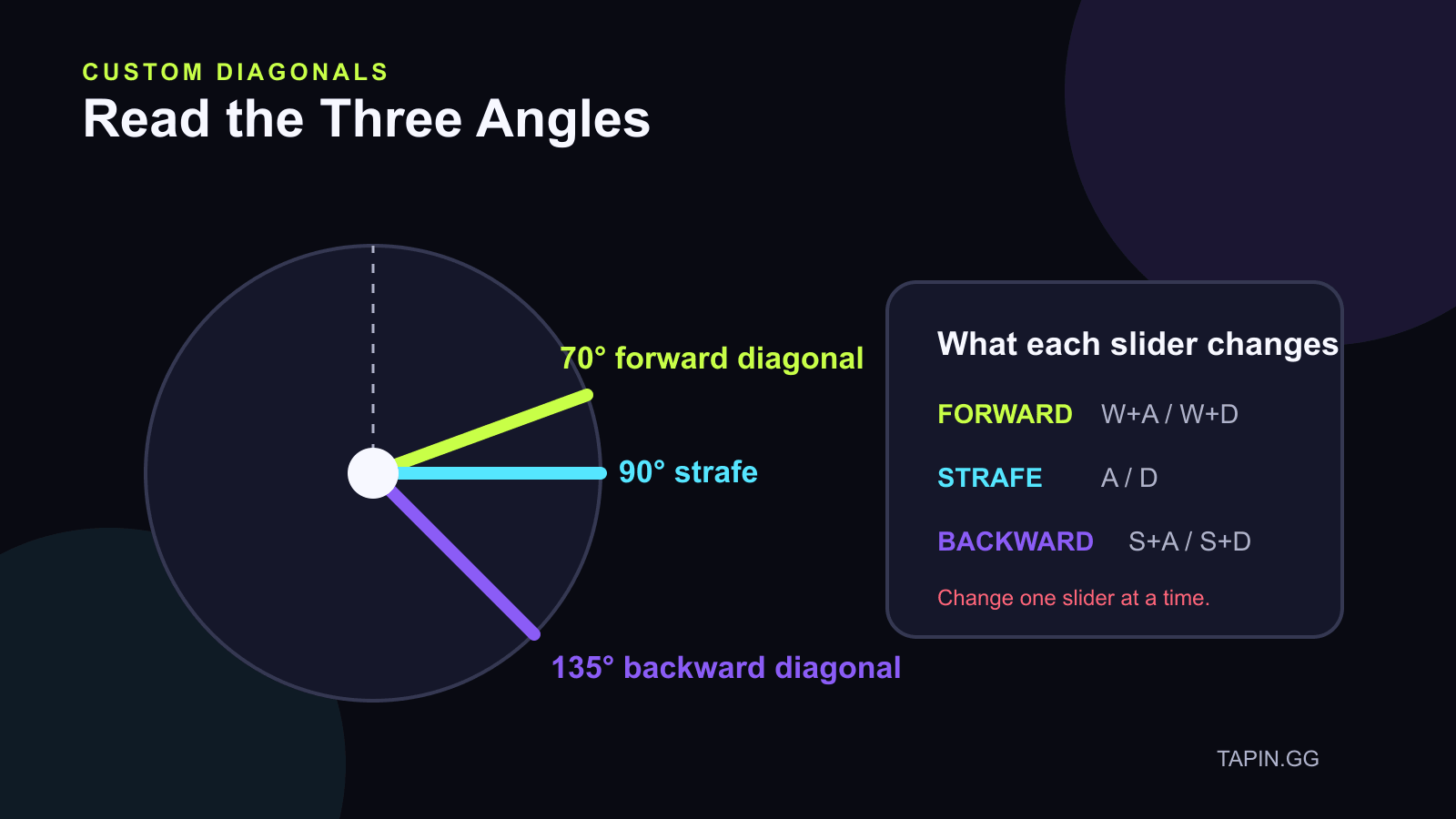
Each slider owns a different key combination. Change one, test one, then move forward.
Table of Contents
- What double movement changes
- How to enable custom diagonals
- The 70 / 90 / 135 starting point
- How to tune each angle
- The 10-minute test
- Troubleshooting
- FAQ
What Fortnite Double Movement Settings Actually Change
A keyboard normally gives you digital directions: W, A, S, D, plus the diagonals created by pressing two keys together. An analog stick can point across a continuous range of angles. Fortnite's native custom diagonals let keyboard players change the movement direction attached to those two-key combinations.
The three sliders do separate jobs:
- Forward Diagonal Angle controls W+A and W+D.
- Strafe Angle controls A and D.
- Backward Diagonal Angle controls S+A and S+D.
That matters while you keep your camera on an opponent, place builds during a rotate, or clear a right-side peek without dragging your crosshair away from the opening. The setting changes movement direction; it does not increase your speed, enlarge hitboxes, change sensitivity, or aim for you.
Epic has specifically referred to this system as Custom Diagonal Movement{:target="_blank"}. That same update also reset players' values after a movement change, which is why a setup can suddenly feel wrong even when your keybinds did not move.
I believe this setting is useful only when it removes a conflict. If a wider diagonal makes one peek cleaner but wrecks your build path, the setting failed.
How to Enable Custom Diagonals in Fortnite
Take screenshots of your current movement binds and settings first. A 20-second baseline makes rollback painless.
Then:
- Open the Fortnite menu and select Settings.
- Choose the Mouse and Keyboard tab.
- Scroll to Keyboard Movement.
- Turn Use Custom Diagonals to On.
- Set Forward Diagonal Angle to 70°.
- Set Strafe Angle to 90°.
- Set Backward Diagonal Angle to 135°.
- Apply the changes and load a private Creative session.
Do not change sensitivity, edit binds, movement keys, and diagonal angles in the same session. If four variables move together, you cannot tell which one helped.
Check W, A, S, and D individually before a live match. Then hold every diagonal pair once: W+A, W+D, S+A, and S+D. If a direction does nothing or stutters, inspect the keybind conflict before blaming the angle.
Our Fortnite keybinds guide gives you a clean reach audit if your build or edit inputs keep stealing a movement finger.
Best Fortnite Double Movement Settings to Test First
There is no universal “best” Fortnite double movement setting. Your useful value depends on whether it improves the same strafe, build, and peek paths you actually use.
Use 70 / 90 / 135 as a control preset because it gives you a clear forward diagonal, a direct sideways strafe, and a balanced backward diagonal. It is a starting point—not a commandment.
Run this three-step ladder:
| Test | Forward / Strafe / Backward | Purpose |
| --- | --- | --- |
| Baseline | Custom diagonals off | Record your normal first mistakes |
| Control | 70 / 90 / 135 | Test a balanced native setup |
| Wider | 75 / 90 / 135 | Check whether more forward-side travel helps |
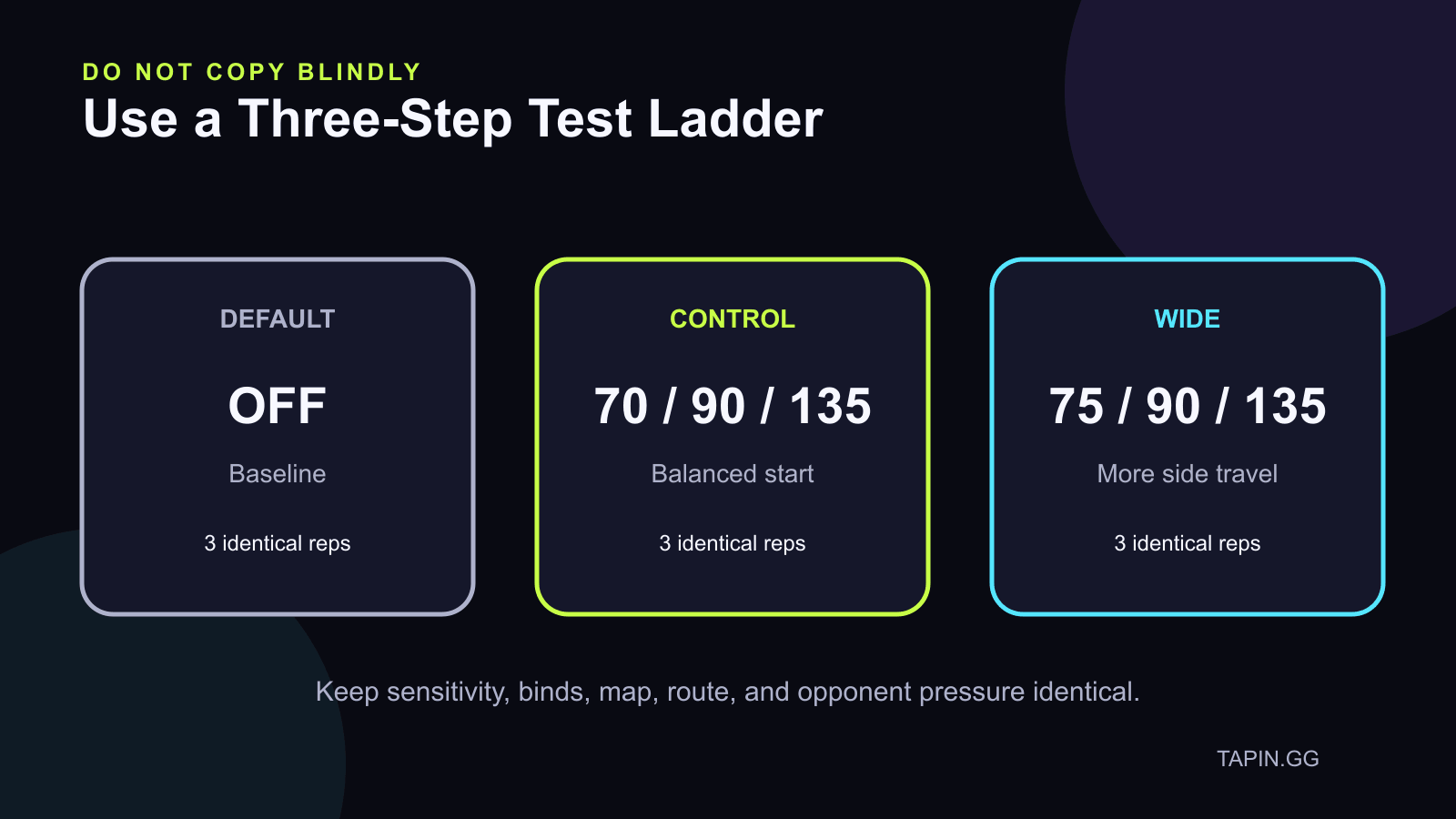
Run three identical reps per setup. The winner is the one with fewer mistakes, not the one that looks faster.
Keep your mouse sensitivity, keybinds, Creative map, route, and opponent pressure identical. Give each setup three runs before scoring it.
If the control preset already feels natural and performs cleanly, stop. Endless tuning is just procrastination with numbers attached.
How to Tune Forward, Strafe, and Backward Angles
Change one slider by two or three degrees, then repeat the same rep. Big jumps make the difference obvious, but they also make it hard to find the useful middle.
Forward diagonal: protect the path you use most
Forward diagonal affects W+A and W+D, so test it while moving toward a target—not while standing in the settings menu. Hold your normal camera angle and repeat a ramp, wall, or tarp path on both sides.
Raise or lower the value by a few degrees and ask one question: can you keep the crosshair where the next threat appears while your character follows the intended path? If not, return to 70°.
Strafe angle: test a clean side-to-side read
Keep strafe at 90° for the first comparison. A clean A or D input gives you an easy reference for side movement, target tracking, and peek timing.
Stand at a fixed distance from a target. Strafe left and right without moving the mouse, then repeat while tracking the target. If your camera correction grows after enabling diagonals, record it—do not instantly “fix” the mouse sensitivity.
Backward diagonal: prioritize escape routes
Backward diagonal appears when you hold S+A or S+D. Test it while leaving a bad peek, resetting behind cover, and backing through your own build path.
The setup should get you out cleanly without turning the camera away from pressure. If 135° clips a piece or sends you too far sideways, move a few degrees, repeat the exact escape, and keep the version with fewer collisions.
Test Double Movement Without Fooling Yourself
Use a 10-minute calibration loop. You do not need a two-hour montage session.
- Strafe: Track one fixed target for 30 seconds while using A and D.
- Build: Repeat the same short build path with W+A, then W+D.
- Peek: Open, fire, reset, and exit on both sides.
- Pressure: Ask a partner to repeat the same spray or peek timing.
- Score: Write down the first mistake in each rep.
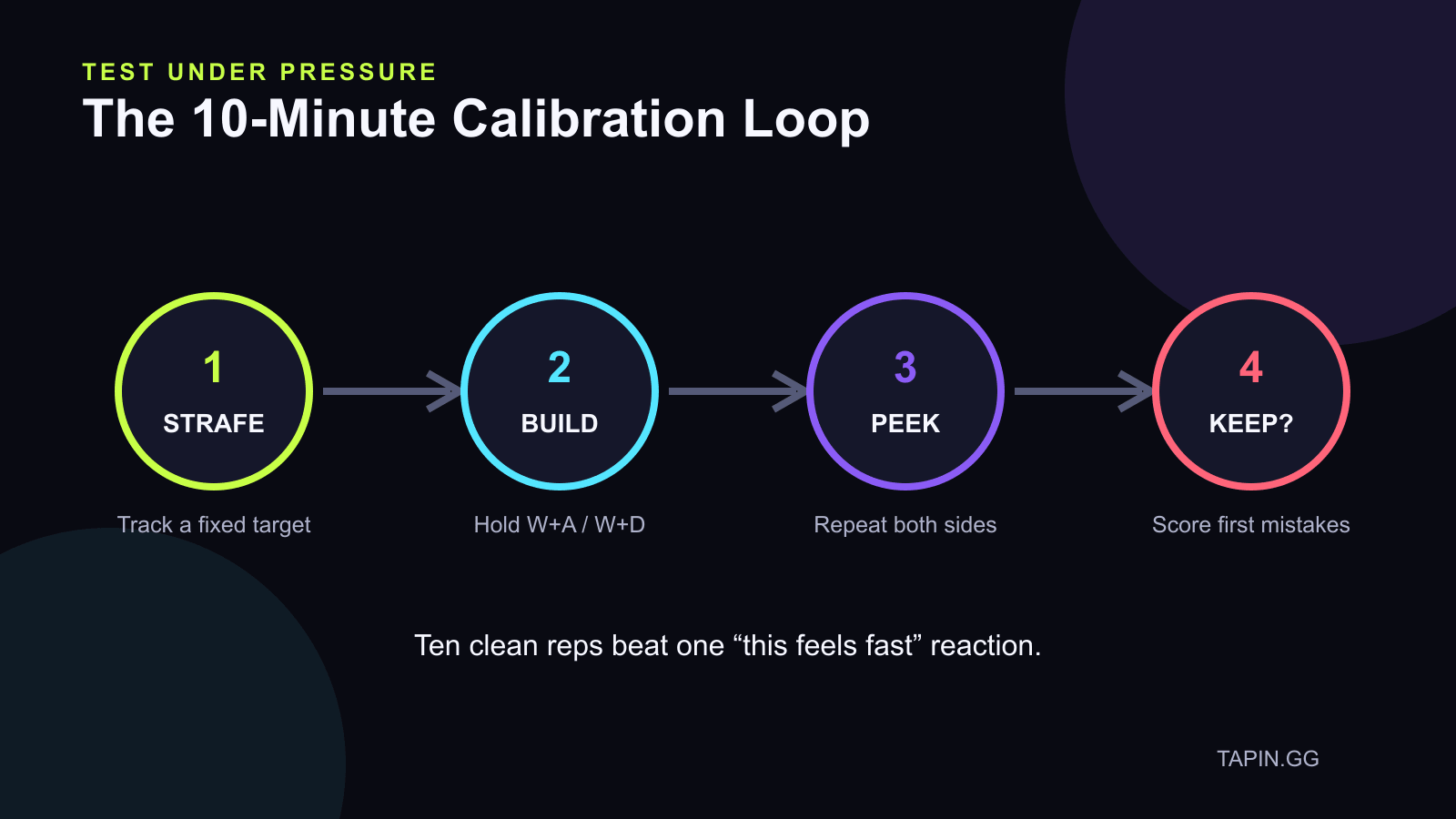
Ten clean reps tell you more than one cracked-looking clip.
Score overshoots, clipped builds, late target pickup, lost crosshair placement, and wrong-way escapes. Do not score “felt smooth.” Smooth is useful, but it is not specific enough to compare tomorrow.
A consistent partner makes this test much better because they can repeat the same pressure instead of giving you random Creative fights. If you want someone to run the drill with you, find a Fortnite teammate or coach on Tapin and bring the three presets—not a vague “my movement feels off.”
Then use the winning setup in live fights. Our Fortnite box fights guide gives you a repeatable protect, claim, peek, shoot, reset, and move loop for that second test.
Fortnite Double Movement Troubleshooting
When the setup feels broken, go back to the last known-good state. Do not stack another tool on top.
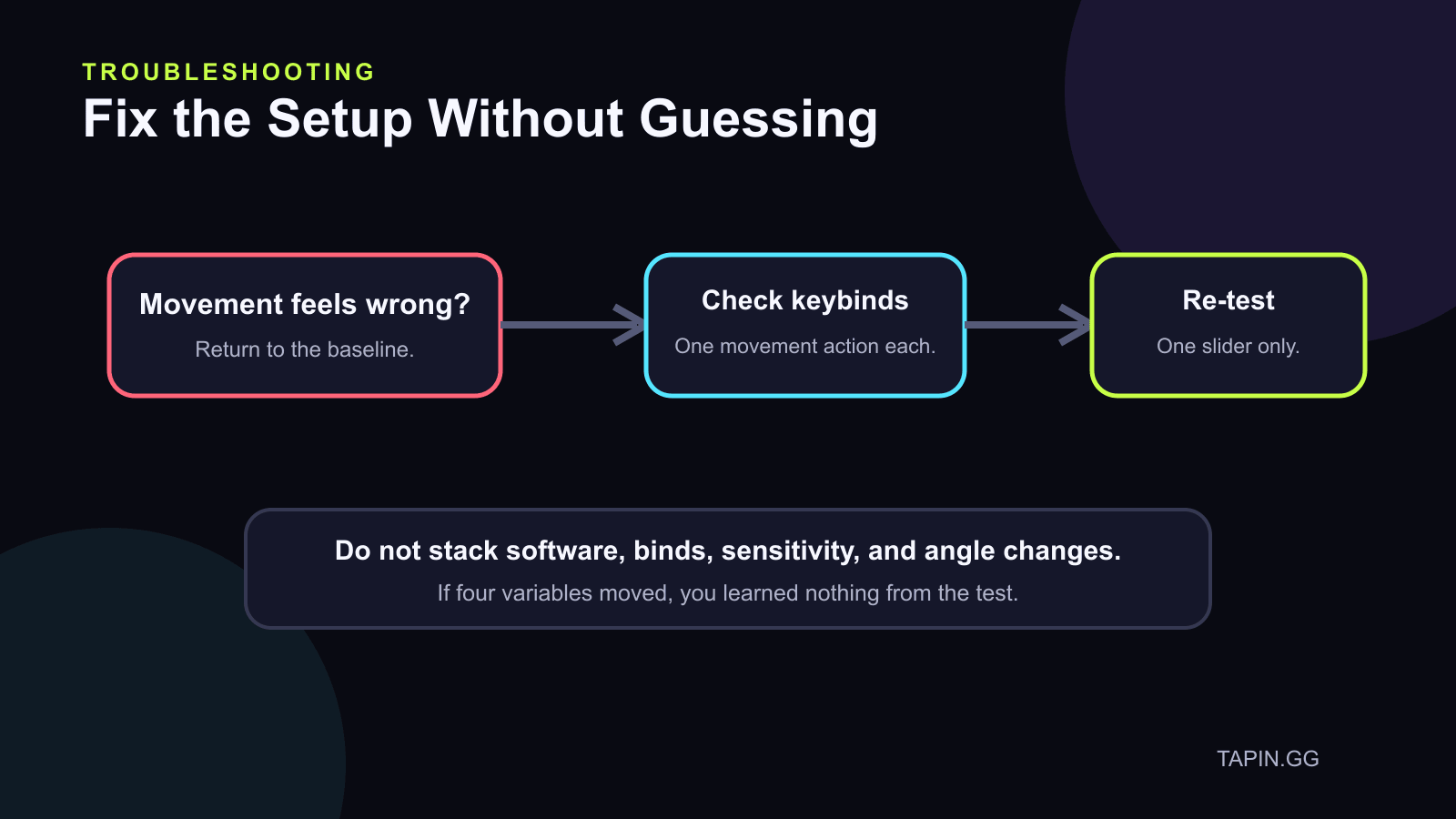
Baseline first, keybind check second, one-slider retest third.
The Custom Diagonals option is missing
Confirm you are on the Mouse and Keyboard tab and scroll to Keyboard Movement. Restart Fortnite after an update before editing config files or installing anything.
If the option still does not appear, capture the game version and a screenshot of the settings tab, then use Epic support. Menu names can change; mystery downloads are not a good substitute for a missing native option.
One diagonal direction does not work
Check that forward, left, right, and backward each have one working movement bind. Remove duplicate inputs temporarily and retest W+A, W+D, S+A, and S+D in an empty Creative island.
Keyboard rollover can also expose combinations that the board does not register cleanly. Use an online keyboard tester outside the game or rebind one action to confirm the hardware combination before changing angles.
The movement changed after an update
Epic has reset custom diagonals after movement changes before. Re-enter your saved values, test the baseline, and avoid assuming the old numbers still win.
Controller prompts flicker while moving
Native custom diagonals should not require a controller-emulation layer. Close remapping software, restart Fortnite, and test only the in-game setting. Mixed-input tools can create prompt flicker and make troubleshooting impossible.
Building feels worse even though strafing feels better
That is a failed all-around setup. Lower the forward-diagonal change toward your baseline and repeat the same build path. Keep the value that preserves crosshair placement and clears your pieces.
Fortnite Double Movement Settings FAQ
What are the best Fortnite double movement settings in 2026?
Start with 70° forward, 90° strafe, and 135° backward. Compare it with custom diagonals off, then test small changes only if a specific strafe, build, or peek keeps failing.
Is double movement allowed in Fortnite?
Fortnite includes native Custom Diagonal Movement settings, so using those in-game controls is the clean route. Rules and supported input methods can change, so check Epic's current competitive rules before using any external remapping tool in an event.
Does double movement make you faster?
No. It changes the direction attached to keyboard movement inputs; it does not add movement speed. The benefit is keeping a useful camera angle while your character travels on a different diagonal.
Should controller players use these settings?
These sliders are for keyboard movement. Controller players already steer with an analog stick and should tune deadzones and stick settings separately.
Why did my custom diagonals reset?
Epic has reset Custom Diagonal Movement values after movement updates before. Save a screenshot of your working setup, then re-test it after any reset instead of assuming the old values are still right.
Keep the Setup You Can Prove
Start at 70 / 90 / 135, compare it with default WASD, and change one angle at a time. If the setting improves strafes but creates more build or peek mistakes, roll it back.
Your best Fortnite double movement settings are the ones that survive pressure. Prove them in ten clean reps, save a screenshot, and get back into the game.